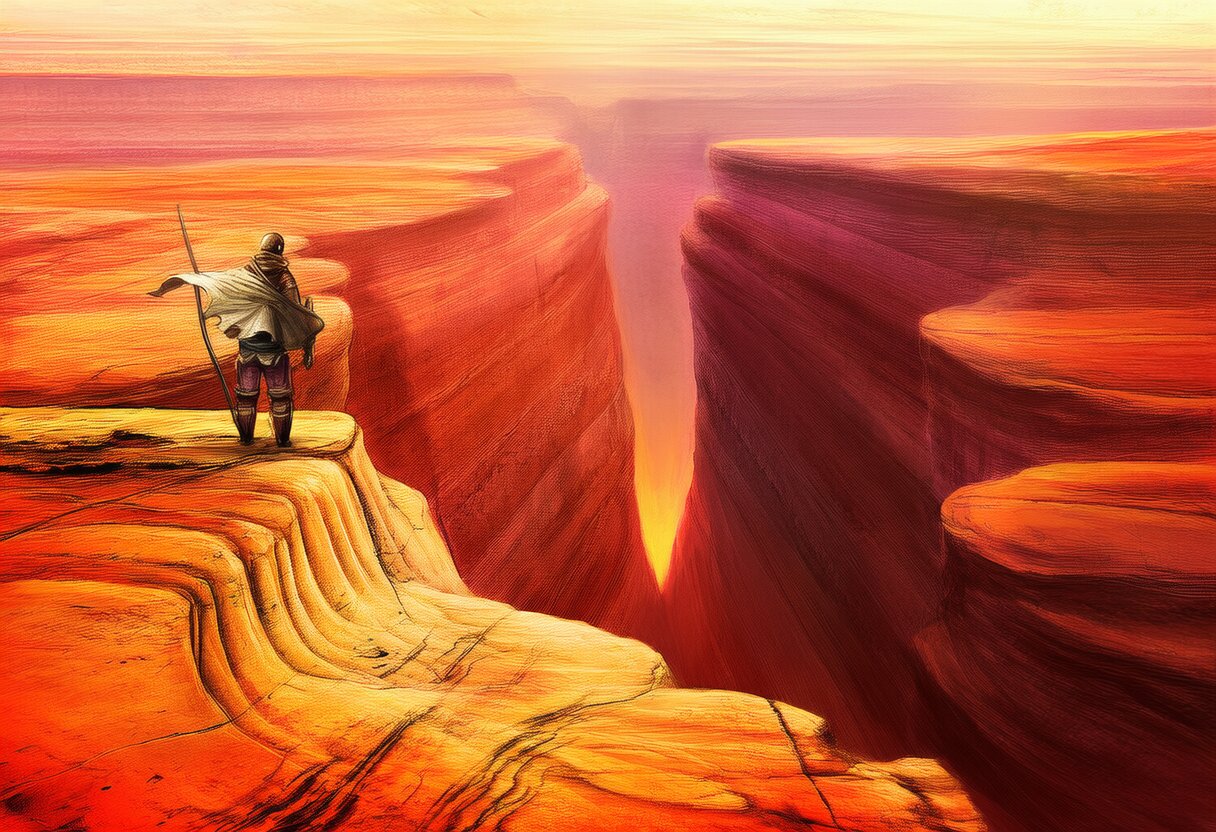
Crimson Desert is gorgeous. It’s also demanding. Pearl Abyss built this thing to push hardware to its limits, and if you’re not running the right settings, you’re either leaving FPS on the table or making the game look worse than it should.
I’ve gone through benchmarks from Digital Foundry, TechSpot, and GamersNexus, plus my own testing across multiple GPU tiers. Here’s the definitive settings guide for Crimson Desert on PC.
System Requirements
| Tier | CPU | GPU | RAM | Storage |
|---|---|---|---|---|
| Minimum | Intel i5-10400 / Ryzen 5 3600 | GTX 1060 6GB / RX 580 | 16 GB | 100 GB SSD |
| Recommended | Intel i5-12400 / Ryzen 5 5600 | RTX 2080 / RX 6700 XT | 16 GB | 100 GB SSD |
| High (1440p) | Intel i5-13600K / Ryzen 7 7800X3D | RTX 4070 / RX 7800 XT | 32 GB | 100 GB NVMe |
| Ultra (4K) | Intel i7-14700K / Ryzen 7 9800X3D | RTX 5070 Ti / RX 9070 XT | 32 GB | 100 GB NVMe |
Important: An SSD is mandatory. Crimson Desert streams textures aggressively, and a HDD will cause constant stuttering and pop-in. An NVMe SSD is strongly recommended for 1440p and above.
Best Settings by Resolution
1080p — 60 FPS Target
| Setting | Low-End (GTX 1060/RX 580) | Mid-Range (RTX 2080/RX 6700 XT) | High-End (RTX 4070/RX 7800 XT) |
|---|---|---|---|
| Texture Quality | Medium | High | Ultra |
| Shadow Quality | Low | Medium | High |
| View Distance | Medium | High | Ultra |
| Anti-Aliasing | TAA | TAA | TAA |
| Volumetric Effects | Low | Medium | High |
| Post-Processing | Medium | High | Ultra |
| DLSS/FSR | Quality | Quality or Off | Off |
| Motion Blur | Off | Off | Off |
| HDR | Off | On (if supported) | On |
Key tips for 1080p:
- Texture Quality is the biggest VRAM hog. If you have 6GB VRAM, stick to Medium. 8GB can handle High. Only go Ultra with 12GB+.
- DLSS Quality mode at 1080p gives you ~40% more FPS with minimal quality loss. FSR 4.1 Quality is the AMD equivalent and works well.
- Turn off Motion Blur — it adds input lag and makes combat feel sluggish.
- Shadow Quality has the biggest FPS impact after textures. Low shadows save ~25% FPS with minimal visual difference in combat.
1440p — 60 FPS Target
| Setting | Mid-Range (RTX 4060 Ti/RX 7600 XT) | High-End (RTX 4070 Super/RX 7800 XT) | Ultra (RTX 5070/RX 9070) |
|---|---|---|---|
| Texture Quality | High | Ultra | Ultra |
| Shadow Quality | Medium | High | Ultra |
| View Distance | High | Ultra | Ultra |
| Anti-Aliasing | TAA | TAA | TAA |
| Volumetric Effects | Medium | High | Ultra |
| Post-Processing | High | Ultra | Ultra |
| DLSS/FSR | Quality | Balanced | Quality or Off |
| Motion Blur | Off | Off | Off |
| HDR | On | On | On |
Key tips for 1440p:
- You need at least 8GB VRAM for 1440p High textures. 16GB is recommended for Ultra textures.
- DLSS Balanced mode at 1440p is the sweet spot — it renders at ~990p internally and upscales. The quality is excellent and FPS gains are ~50%.
- Volumetric Effects on High adds beautiful god rays and atmospheric effects. Medium looks flat. Worth the FPS cost.
- NVMe SSD makes a real difference at 1440p — texture streaming is significantly faster.
4K — 60 FPS Target
| Setting | RTX 5070 Ti / RX 9070 XT | RTX 5080 / RX 9070 XT OC | RTX 5090 |
|---|---|---|---|
| Texture Quality | Ultra | Ultra | Ultra |
| Shadow Quality | High | Ultra | Ultra |
| View Distance | Ultra | Ultra | Ultra |
| Anti-Aliasing | TAA + DLSS | TAA + DLSS | TAA + DLSS |
| Volumetric Effects | High | Ultra | Ultra |
| Post-Processing | Ultra | Ultra | Ultra |
| DLSS/FSR | Quality | Quality | Balanced |
| Motion Blur | Off | Off | Off |
| HDR | On | On | On |
Key tips for 4K:
- DLSS is mandatory at 4K. Even the RTX 5090 can’t maintain 60 FPS at 4K native Ultra. DLSS Quality mode renders at ~1440p and upscales — the result is nearly indistinguishable from native.
- 16GB VRAM minimum for 4K Ultra textures. The RTX 5070 Ti’s 16GB is sufficient; the RX 9070 XT’s 16GB is equally capable.
- Ray Tracing is available but tanks performance. Enable it only if you have an RTX 5080 or above. Even then, expect 40-50 FPS with RT on at 4K.
The Settings That Matter Most
🔴 High FPS Impact (lower these first)
🟡 Medium FPS Impact
🟢 Low FPS Impact (keep these high)
Common Issues and Fixes
Stuttering on HDD: Move the game to an SSD. This is non-negotiable.
VRAM-related stutters: If you have 8GB VRAM and set textures to Ultra, you’ll get stutters when the game exceeds VRAM. Drop textures to High.
DLSS ghosting: Some users report ghosting with DLSS in fast-moving scenes. Switch to DLAA (if available) or use FSR 4.1 instead.
Low FPS despite good hardware: Check that your GPU is actually being used. Crimson Desert can sometimes default to integrated graphics on laptops. Also verify your display is connected to your GPU, not your motherboard.
Crash on launch: Verify game files through Steam. The most common cause is corrupted shader cache — delete the shader cache folder and let the game rebuild it.
Quick Presets
Don’t want to tweak every setting? Use these presets:
Competitive (max FPS): Textures Medium, Shadows Low, Volumetrics Low, View Distance Medium, Post-Processing Low, DLSS Balanced, Motion Blur Off
Balanced (best quality/FPS ratio): Textures High, Shadows Medium, Volumetrics Medium, View Distance High, Post-Processing High, DLSS Quality, Motion Blur Off
Visual Showcase (max quality): Textures Ultra, Shadows Ultra, Volumetrics High, View Distance Ultra, Post-Processing Ultra, DLSS Quality, HDR On
Crimson Desert is one of the best-looking games of 2026, and with the right settings, it runs well on everything from a GTX 1060 to an RTX 5090. The key is matching your settings to your hardware, not just cranking everything to Ultra.
Keywords: Crimson Desert PC settings, Crimson Desert best settings, Crimson Desert performance guide, Crimson Desert FPS boost, Crimson Desert 1080p settings, Crimson Desert 1440p settings, Crimson Desert 4K settings, Crimson Desert DLSS, Crimson Desert system requirements, Crimson Desert optimization