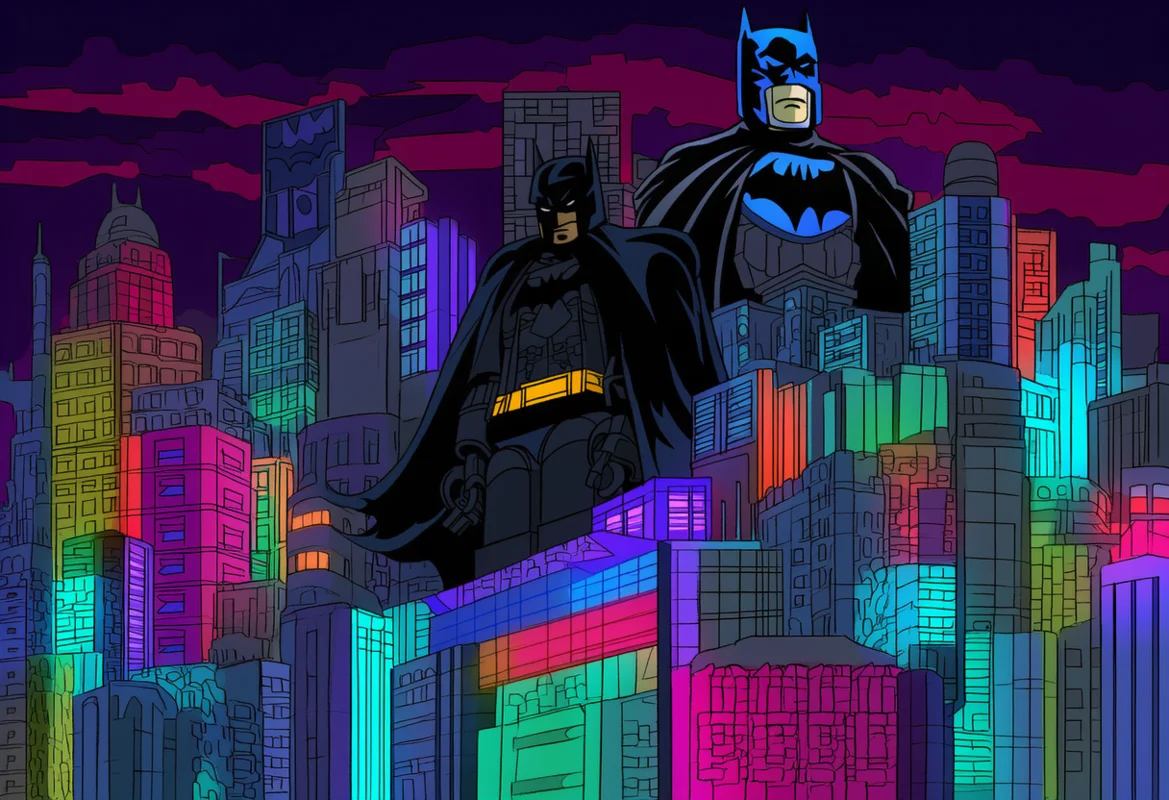
LEGO Batman: Legacy of the Dark Knight arrives on May 22, 2026, and it is unlike any LEGO game we have seen before. Built on Unreal Engine 5 with full Lumen global illumination, Nanite geometry, and hardware ray tracing, this open-world Gotham adventure demands significantly more from your PC than previous entries in the series. The community has already raised eyebrows at the system requirements — originally listing 32 GB of RAM — and we understand the concern. If you are looking for the best LEGO Batman Legacy of the Dark Knight PC settings, you have come to the right place.
In this guide, we break down the optimal settings for every GPU tier, explain how to squeeze performance out of UE5’s demanding features, and walk you through the ini edits that can make or break your experience. Whether you are running a budget rig or a top-tier powerhouse, we have you covered with tested recommendations that keep Gotham running smooth.
System Requirements
TT Games made the bold move from their proprietary NTT engine to Unreal Engine 5 for LEGO Batman: Legacy of the Dark Knight, and the system requirements reflect that shift. Compared to LEGO Star Wars: The Skywalker Saga, which needed only a GTX 660 and 8 GB of RAM at minimum, this new title asks for considerably more horsepower. The original Steam listing recommended 32 GB of RAM, which caused significant community backlash before TT Games updated the specs.
Here are the three official requirement tiers:
| Component | Minimum (1080p / 30 FPS) | Recommended (1440p / 60 FPS) | Ultra 4K (2160p / 60 FPS) |
|---|---|---|---|
| OS | Windows 11 | Windows 11 | Windows 11 |
| CPU | Intel i5-10600K / AMD Ryzen 5 1600 | Intel i7-12700 / AMD Ryzen 7 5800X | Intel i7-14700K / AMD Ryzen 7 9700X |
| RAM | 16 GB | 16 GB | 24 GB |
| GPU | GTX 960 (4 GB) / RX 6400 (4 GB) / Arc A580 (8 GB) | RTX 2070 Super (8 GB) / RX 6650 XT (8 GB) / Arc B580 (12 GB) | RTX 4070 (12 GB) / RX 9070 XT (16 GB) |
| Storage | 50 GB | 50 GB SSD | 50 GB SSD |
| Upscaling | FSR/XeSS Balanced + Frame Gen | DLSS/FSR/XeSS Quality + Frame Gen | DLSS/FSR/XeSS Quality + Frame Gen |
Notice that even the minimum spec relies on upscaling and frame generation to hit 30 FPS. This is a clear signal that UE5’s Lumen and Nanite features are pushing hard on the hardware, and you should expect to use DLSS, FSR, or XeSS regardless of your GPU. If you are shopping for a GPU upgrade, check our Best Graphics Card for Gaming guide for current recommendations.
Best Settings for Budget 1080p GPUs
If you are running a GTX 960, RX 6400, Arc A580, or similar budget hardware, hitting a stable 30 FPS at 1080p is your realistic target. The minimum specs already assume you will be using upscaling and frame generation, so do not try to run this game at native resolution on low-end hardware.
Recommended settings for budget 1080p:
- Resolution: 1080p with FSR or XeSS set to Balanced (or Performance on the weakest GPUs)
- Frame Generation: Enabled (required to reach 30 FPS on minimum-spec hardware)
- Global Illumination: Low (Lumen software mode — see our ini edit section below)
- Ray Tracing: Disabled via ini edit (hardware RT will crush budget GPUs)
- Textures: Low to Medium (4 GB VRAM is extremely tight — stick to Low)
- Shadows: Low
- Post-Processing: Low
- View Distance: Medium
- Nanite Landscape: Consider disabling via ini for smoother performance
The biggest win for budget players is disabling hardware ray tracing through the engine.ini file. We cover the exact commands in the ini edit section below, but the short version is that forcing Lumen into software mode can free up significant GPU headroom on cards that lack dedicated RT hardware or have very limited VRAM. Pair this with FSR Balanced or Performance mode, and you should be able to maintain a playable 30 FPS experience.
Keep in mind that 16 GB of RAM is the floor. Close background applications — especially browsers and launchers — before launching the game. UE5 streaming can cause stuttering if RAM is constrained, and the open-world Gotham City environment will push memory usage higher than the linear levels in previous LEGO titles.
Best Settings for Mid-Range 1440p GPUs
For those rocking an RTX 2070 Super, RX 6650 XT, Arc B580, or similar mid-range hardware, 1440p at 60 FPS is the target — and it is achievable with the right settings. The recommended specs already assume DLSS or FSR Quality mode plus Frame Generation, so plan accordingly.
Recommended settings for mid-range 1440p:
- Resolution: 1440p with DLSS/FSR/XeSS Quality + Frame Generation
- Global Illumination: Medium (Lumen software mode is still recommended for consistent frame times)
- Ray Tracing: Disabled via ini edit unless you have an RTX card with dedicated RT cores and want subtle reflections
- Textures: High (8 GB VRAM is comfortable at this tier)
- Shadows: Medium to High
- Post-Processing: Medium
- View Distance: High
- Effects: Medium
The RTX 2070 Super has dedicated RT cores, so you can experiment with hardware ray tracing enabled if you are willing to accept some frame rate dips in dense Gotham scenes. However, we found that the visual difference between Lumen software mode and hardware RT in a LEGO game is subtle enough that most players will prefer the smoother frame rate. For a deeper dive into upscaling quality, our DLSS 4.5 vs FSR 4.1 comparison covers the latest generation of each technology in detail.
If you are on an RX 6650 XT, FSR 4 Quality mode is your best bet. AMD’s upscaling has improved significantly, and at 1440p with Frame Generation, you should see a comfortable 60 FPS in most scenarios. The Arc B580 benefits from XeSS, which has matured well on Intel’s latest drivers and offers competitive quality at this resolution tier.
Best Settings for High-End 4K GPUs
Running an RTX 4070, RX 9070 XT, or better? Welcome to the 4K club. The official ultra spec targets 2160p at 60 FPS with DLSS/FSR/XeSS Quality and Frame Generation, and with 12–16 GB of VRAM, you have the headroom to push most settings to High or Ultra.
Recommended settings for high-end 4K:
- Resolution: 4K (2160p) with DLSS/FSR/XeSS Quality + Frame Generation
- Global Illumination: High (hardware RT can be left enabled on RTX 40/50 series and RX 9000 series)
- Ray Tracing: Enabled (if you have RT cores — the visual upgrade is noticeable at 4K)
- Textures: Ultra (12 GB+ VRAM handles this easily)
- Shadows: High to Ultra
- Post-Processing: High
- View Distance: Ultra
- Effects: High
At 4K, the extra pixel density makes upscaling artifacts far less noticeable, so DLSS Quality or FSR Quality will both look excellent. If you are on an RTX 4070 or above, DLSS with Frame Generation is the clear choice for the best balance of image quality and performance. RTX 50 series owners can leverage DLSS 4’s Multi Frame Generation for even higher frame rates, though the benefit beyond 60 FPS in a LEGO action game is debatable. For more on what GPU makes sense for your next upgrade, see our Best Graphics Card for Gaming roundup.
One important note: the 4K spec recommends 24 GB of RAM. We strongly suggest closing all unnecessary background applications if you are running 16 GB. UE5’s streaming system combined with the open-world Gotham map can push memory usage well past 16 GB at 4K, leading to stuttering and occasional hard pauses. If you plan to play at 4K regularly, upgrading to 32 GB of RAM is a worthwhile investment.
DLSS vs FSR vs XeSS: Which Upscaler to Use
LEGO Batman: Legacy of the Dark Knight supports all three major upscaling technologies at launch — DLSS, FSR, and XeSS — plus Frame Generation for each. This is great news because the game essentially requires upscaling to hit its target frame rates across every spec tier.
NVIDIA DLSS remains the gold standard for image quality, especially at Quality and Balanced presets. If you have an RTX GPU, use DLSS. Frame Generation on RTX 20-series and above provides a substantial boost, and RTX 40/50-series cards support the latest Frame Generation implementation. DLSS 4 with Multi Frame Generation is available on RTX 50-series cards, offering even more generated frames for smoother gameplay.
AMD FSR has come a long way, and FSR 4 delivers solid upscaling quality at 1440p and 4K. At 1080p, FSR Balanced and Performance modes can look a bit soft, but they are necessary on budget GPUs. The main advantage of FSR is that it works on all GPUs — NVIDIA, AMD, and Intel alike.
Intel XeSS is the dark horse here. On Arc GPUs, XeSS uses hardware acceleration for excellent quality. On non-Intel GPUs, it falls back to DP4a mode, which is comparable to FSR at similar presets. If you are on an Arc B580, XeSS is your best upscaling option.
Our recommendation: use DLSS if you have an RTX card, FSR if you are on AMD, and XeSS if you are on Intel Arc. All three are viable, and the differences at Quality preset are minimal. For a detailed breakdown of how these upscalers compare in 2026, check our DLSS 4.5 vs FSR 4.1 comparison article.
How to Disable Hardware Ray Tracing via INI Edits
This is perhaps the single most important optimization tip in our entire guide. LEGO Batman: Legacy of the Dark Knight appears to enable hardware ray tracing by default through UE5’s Lumen system, and there is no in-game toggle to turn it off. For many players — especially those on budget and mid-range hardware — this is the biggest source of performance problems.
The good news is that you can force Lumen into software mode by editing the engine.ini file. Here is how:
- Navigate to:
%LOCALAPPDATA%\LEGOBatman\Saved\Config\WindowsNoEditor\Engine.ini - Open
Engine.iniin a text editor - Add the following lines under the
[SystemSettings]section:
[SystemSettings]
r.Lumen.HardwareRayTracing=0
r.RayTracing.Enable=0
r.RayTracing.Shadows=0
r.RayTracing.GlobalIllumination=0
r.RayTracing.ForceAllRayTracingEffects=0
r.DisableLandscapeNaniteGI=1
Save the file and set it to read-only to prevent the game from overwriting your changes. This forces Lumen to use its software GI path, which is significantly less demanding on GPU hardware. The visual difference is minimal in a LEGO game — you will lose some subtle reflection and bounce lighting effects, but the performance gain is substantial, often 20–40% depending on your GPU.
The last line, r.DisableLandscapeNaniteGI=1, disables Nanite-based global illumination on landscape geometry. This can help reduce micro-stutters in open-world Gotham City scenes where Nanite is processing large terrain meshes. If you experience stuttering even with hardware RT disabled, try adding this line as well.
For more UE5 optimization commands and community fixes, the PCGamingWiki is an excellent resource that is frequently updated after launch.
UE5 Performance Issues and Fixes
Unreal Engine 5 games share a common set of performance challenges, and LEGO Batman is no exception. If you played LEGO Star Wars: The Skywalker Saga and experienced stuttering, you will recognize some of the same issues — though for different reasons. The Skywalker Saga used TT Games’ NTT engine and suffered from CPU thread scheduling problems, while LEGO Batman’s UE5 transition introduces shader compilation stuttering and traversal stuttering.
Shader compilation stuttering is the most common UE5 issue. The first time you play, the game compiles shaders for your specific GPU, which can cause hitching and freezes. This usually improves after the first play session as shaders are cached, but it can recur after driver updates. Our advice: let the game sit at the main menu for a few minutes before starting a session, and expect some stuttering in your first hour of play.
Traversal stuttering occurs when the engine streams in new geometry as you move through the open world. An SSD is strongly recommended — the official recommended and 4K specs both specify SSD storage. If you are still on an HDD, expect significantly longer loading and more frequent stutters when traversing Gotham City.
Additional UE5 tweaks to try:
- Set CPU thread affinity via Task Manager or a third-party tool — this helped with Skywalker Saga stuttering and may help here
- Disable fullscreen optimizations for the game executable (right-click the .exe → Properties → Compatibility → Disable fullscreen optimizations)
- Update your GPU drivers to the latest version before playing — day-one driver updates often include UE5 optimizations
- If you have 16 GB of RAM, close all background applications including browsers, launchers, and overlays
- Consider capping your frame rate to a stable target (30 or 60) rather than running uncapped, which can cause inconsistent frame pacing
For players coming from the Skywalker Saga, the good news is that UE5 is a well-understood engine with an active modding and optimization community. We expect community fixes and ini tweaks to surface quickly after launch, and we will update this guide as they become available. For another recent UE5 title’s optimization tips, see our Forza Horizon 6 PC Performance Guide.
Local Co-Op Performance Impact
LEGO Batman: Legacy of the Dark Knight supports 2-player local co-op only — there is no online multiplayer whatsoever. This is consistent with previous TT Games LEGO titles, but it is worth noting because local co-op has a measurable impact on performance.
When playing in split-screen, the game essentially renders two viewpoints simultaneously. This can reduce your frame rate by 30–50% depending on the scene complexity and your hardware. On a budget GPU already struggling to hit 30 FPS, split-screen co-op may push you into unplayable territory unless you lower settings further or reduce resolution.
Tips for smoother co-op performance:
- Drop your upscaling preset one tier (e.g., from Quality to Balanced) when playing co-op
- Reduce shadow quality and post-processing — these are the biggest frame rate drainers in split-screen
- Ensure both players stay in the same general area of the map to minimize streaming overhead
- Consider playing on a lower resolution (e.g., 900p upscaled to 1080p) if frame rates drop below 25 FPS
The lack of online co-op is a disappointment for many players, and if you were hoping to team up with a friend remotely, you will need to use a third-party screen-sharing tool like Parsec. Keep in mind that Parsec adds its own latency and encoding overhead, which further impacts performance.
Also worth noting: LEGO Batman: Legacy of the Dark Knight is not available on Game Pass at launch. If you want to play, you will need to purchase it on Steam or the Epic Games Store. For a full list of what is coming to PC this month, check our May 2026 PC Game Releases guide.
Frequently Asked Questions
Can your PC run LEGO Batman: Legacy of the Dark Knight?
The minimum requirement is a GTX 960 or RX 6400 with 16 GB of RAM and an i5-10600K or Ryzen 5 1600, targeting 1080p at 30 FPS with FSR/XeSS Balanced and Frame Generation enabled. Without upscaling, even these minimum specs will struggle. Check the system requirements table above for full details.
Does LEGO Batman: Legacy of the Dark Knight support DLSS?
Yes — the game supports DLSS, FSR, and XeSS at launch, all with Frame Generation. DLSS is available on RTX GPUs, FSR works on all cards, and XeSS is optimized for Intel Arc but works on other GPUs too. See our upscaling section for detailed recommendations.
Does LEGO Batman: Legacy of the Dark Knight have ray tracing?
The game uses UE5 Lumen for global illumination and reflections, which includes hardware ray tracing by default. There is no in-game toggle to disable it, but you can force software Lumen mode via engine.ini edits. See our ini edit section for the exact commands.
Is LEGO Batman: Legacy of the Dark Knight on Game Pass?
No, LEGO Batman: Legacy of the Dark Knight is not available on Game Pass at launch. It is available on Steam and the Epic Games Store for purchase.
Does LEGO Batman: Legacy of the Dark Knight have online co-op?
No. The game supports 2-player local co-op only, with no online multiplayer. This is consistent with previous TT Games LEGO titles. If you want to play with a remote friend, you will need a third-party screen-sharing solution like Parsec.
Conclusion
LEGO Batman: Legacy of the Dark Knight is a significant technical leap for the LEGO game franchise. The move to Unreal Engine 5 brings gorgeous Lumen lighting and Nanite-powered geometry to Gotham City, but it also brings demanding system requirements that caught the community off guard. The good news is that with the right settings — and especially with the ini edit to disable hardware ray tracing — the game is playable across a wide range of hardware.
To recap our key recommendations: budget players should focus on FSR/XeSS Balanced with hardware RT disabled via ini; mid-range players can target 1440p with DLSS/FSR Quality and enjoy a smooth 60 FPS; and high-end players can push most settings to Ultra at 4K with upscaling. An SSD and 16 GB of RAM are essentially mandatory, and 24 GB is recommended for 4K. Local co-op players should plan to lower settings to maintain playable frame rates in split-screen.
We will update this guide as community ini tweaks, driver updates, and potential patches emerge after launch. Bookmark this page and check back for the latest optimizations.