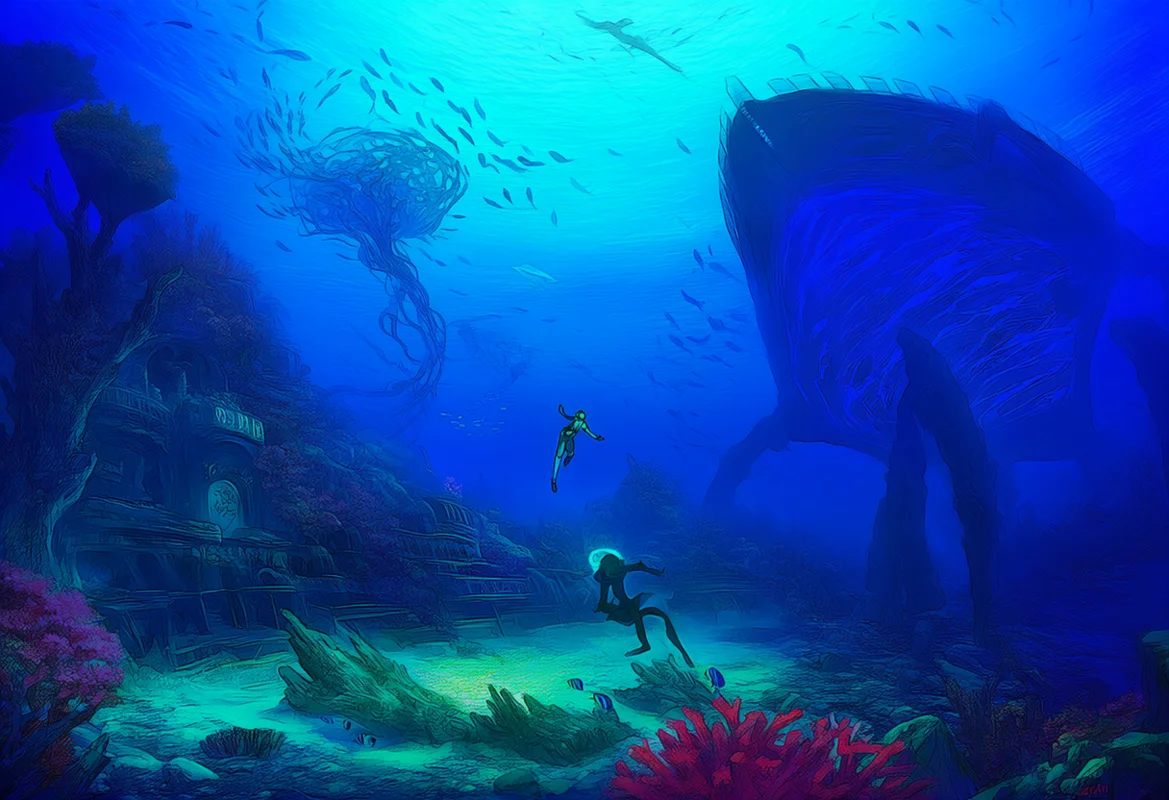
Subnautica 2 has crash-landed into Early Access, and if your frame rate is sinking faster than the Aurora, you are not alone. Unknown Worlds built this sequel on Unreal Engine 5, which means Lumen global illumination, Nanite virtualized geometry, and — here is the kicker — no DLSS or FSR support at launch. Instead, we are stuck with UE5’s built-in Temporal Super Resolution as our only upscaling option.
In this guide, we present our Subnautica 2 best settings PC for every GPU tier, from budget 1080p rigs to enthusiast 4K setups. We cover system requirements, VRAM demands, TSR tuning, and every known performance workaround so you can spend less time tweaking and more time exploring the deep.
Bookmark this page — we will update it as Unknown Worlds patches performance throughout Early Access. Our testing covers the latest Early Access build, and we will revise our recommendations as new patches drop.
Subnautica 2 System Requirements (All 4 Tiers)
Unknown Worlds has published four requirement tiers for Subnautica 2, and they are notably demanding for an Early Access title. The minimum spec targets just 30 FPS at 1080p Low — a clear sign that UE5’s Lumen and Nanite are not lightweight. You can view the full official breakdown on the Subnautica 2 system requirements page. If you are wondering whether your current GPU can handle the game, our Best Graphics Card for Gaming guide has the latest recommendations for every budget.
| Tier | Target | CPU | GPU | VRAM | RAM | Storage |
|---|---|---|---|---|---|---|
| Minimum | 1080p Low @ 30 FPS | i5-8400 / R5 2600 | GTX 1660 (6GB) / RX 5500 XT (8GB) | 6 GB | 12 GB | 50 GB SSD |
| Recommended | 1440p Medium @ 60 FPS | i7-13700 / R7 7700X | RTX 3070 (8GB) / RX 6700 XT (12GB) | 8 GB | 16 GB | 50 GB SSD |
| Ultra | 4K High @ 60 FPS | i7-14700K / R7 7800X3D | RTX 4070 (12GB) / RX 7800 XT (16GB) | 12 GB | 16 GB | 50 GB SSD |
| Ultra++ | 4K Ultra @ 60+ FPS | i9-14900K / R9 7900X3D | RTX 5070 Ti (16GB) / RX 7900 XTX (24GB) | 16 GB | 32 GB | 50 GB SSD |
A few things jump out immediately. The 12 GB RAM minimum is unusually high for a 30 FPS target at 1080p Low — that is UE5’s memory overhead at work. An SSD is mandatory; running this game from an HDD will cause severe streaming stutters thanks to Nanite’s virtualized geometry system. And the Ultra++ tier demanding 16 GB of VRAM confirms that maxed-out Subnautica 2 is not kidding around.
For context on where GPU pricing sits right now, RX 9000 prices are dropping fast — worth a look if you are considering an upgrade for this and other UE5 titles.
Best Settings for Budget 1080p GPUs
If you are running a GTX 1660, RX 5500 XT, or similar budget GPU, Subnautica 2 will push your hardware to its limits. The goal here is a playable 30–45 FPS experience that still looks decent underwater. Water rendering is the single biggest performance bottleneck in the game, so that is where we start cutting.
Recommended settings for budget 1080p (GTX 1660 / RX 5500 XT):
- Overall Preset: Low
- Resolution: 1080p with TSR Quality (67% internal resolution)
- Water Rendering Quality: Low — this is the single biggest FPS gain you can make
- Draw Distance: Low — reduces underwater visibility but saves significant frames
- Shadows: Low — UE5 Virtual Shadow Maps are expensive; Low is the sweet spot
- Lumen Global Illumination: Low or Off — Lumen on Low still provides basic bounce lighting; Off gives maximum FPS
- Textures: Medium (only if your VRAM allows — 6 GB cards should stick to Low textures)
- Volumetric Effects: Low
- Anti-Aliasing: TSR (handles both upscaling and AA)
On a GTX 1660 6GB, expect 30–40 FPS with these settings. The 6 GB VRAM limit means you should never push textures above Medium. If you hit stuttering, drop Lumen to Off entirely — you lose dynamic bounce lighting but gain a noticeable frame rate boost. Closing background applications to free system RAM is also essential here, since 12 GB is already the bare minimum.
Best Settings for Mid-Range 1440p GPUs
The mid-range tier is where most PC gamers sit in 2026. Whether you are on an RTX 3060 targeting 1080p 60 FPS or an RTX 3070 / RX 6700 XT pushing 1440p, these settings balance visual fidelity with smooth performance.
Recommended settings for mid-range 1080p 60 FPS (RTX 3060 / RX 6600 XT):
- Overall Preset: Medium
- Resolution: 1080p native or TSR Quality (67%)
- Water Rendering Quality: Medium
- Draw Distance: Medium
- Shadows: Medium
- Lumen: Medium
- Textures: High
- Volumetric Effects: Medium
- Anti-Aliasing: TSR
Recommended settings for mid-high 1440p 60 FPS (RTX 3070 / RX 6700 XT / RTX 4060 Ti):
- Overall Preset: Medium-High
- Resolution: 1440p with TSR Quality (67%)
- Water Rendering Quality: High
- Draw Distance: Medium-High
- Shadows: Medium
- Lumen: Medium
- Textures: High
- Volumetric Effects: Medium-High
- Anti-Aliasing: TSR
The key insight for 8 GB VRAM cards at 1440p: always use TSR Quality upscaling. Running native 1440p with High textures and Lumen will push VRAM usage to 8–10 GB, which causes stuttering on 8 GB cards. TSR Quality renders at roughly 67% of your target resolution and reconstructs a clean image — it is your best friend until DLSS or FSR arrives. For more on how upscaling tech compares, check our DLSS 4.5 vs FSR 4.1 comparison.
Best Settings for High-End 4K GPUs
If you are packing an RTX 4070, RX 7800 XT, or higher, Subnautica 2 can look absolutely stunning — but even high-end hardware needs careful tuning. Lumen at High or Epic quality is extremely demanding, and water rendering at Ultra will punish any GPU.
Recommended settings for high-end 4K 60 FPS (RTX 4070 / RX 7800 XT):
- Overall Preset: High
- Resolution: 4K with TSR Quality (67%)
- Water Rendering Quality: High
- Draw Distance: High
- Shadows: High
- Lumen: Medium-High — Epic Lumen at 4K is overkill for marginal visual gain
- Textures: High-Ultra (12+ GB VRAM required for Ultra)
- Volumetric Effects: High
- Anti-Aliasing: TSR
Recommended settings for enthusiast 4K maxed (RTX 5070 Ti / RX 7900 XTX / RTX 4090):
- Overall Preset: Ultra / Ultra++
- Resolution: 4K with TSR Quality (67%) or native
- Water Rendering Quality: Ultra
- Draw Distance: Ultra
- Shadows: Ultra
- Lumen: High-Epic
- Textures: Ultra
- Volumetric Effects: Ultra
- Anti-Aliasing: TSR or Off (native 4K is sharp enough without AA on some displays)
Even on an RTX 5070 Ti, we recommend TSR Quality at 4K rather than going fully native. The performance headroom you gain — roughly 25–35% — is worth the minimal visual tradeoff, and it gives you breathing room for Lumen at High or Epic quality. For a broader look at how modern GPUs handle demanding titles, see our Forza Horizon 6 PC Performance Guide.
TSR Upscaling Guide — No DLSS or FSR at Launch
Here is the most important thing to understand about Subnautica 2’s upscaling situation at Early Access launch: there is no DLSS and no FSR support. Unknown Worlds has not announced any timeline for adding either technology. The only upscaling option available is UE5’s built-in Temporal Super Resolution (TSR).
TSR is not terrible — it is the same technology powering many other UE5 titles — but it lacks the frame generation capabilities of DLSS 4 or FSR 3.0. If you were hoping for DLSS Multi Frame Generation to push your RTX 50-series card to 120+ FPS, you will have to wait.
TSR Quality Modes and Their Impact:
- TSR Quality (67%): Best balance of image quality and performance. Renders at 67% of your target resolution. Our recommended default for all GPU tiers.
- TSR Balanced (57%): Noticeably softer image but significant FPS gains. Good option for 8 GB VRAM cards struggling at 1440p.
- TSR Performance (50%): Half-resolution rendering. Only use this if you are desperate for frames on a budget GPU. Expect visible blurriness, especially in motion.
- TSR Ultra Quality (77%): Minimal performance gain over native but nearly indistinguishable image quality. Use this only if you need a small FPS nudge at 4K.
TSR does have a known weakness: temporal instability. In fast-moving scenes, especially when swimming through kelp forests or coral reefs, you may notice shimmering or ghosting. This is inherent to temporal upscaling and will hopefully improve as Unknown Worlds refines the implementation. The community is actively requesting DLSS and FSR 3.0 support on the Steam discussions, so we may see one or both added during Early Access.
UE5 Deep Dive: Lumen, Nanite & Virtual Shadow Maps
Subnautica 2 runs on Unreal Engine 5 with three major rendering features active: Lumen, Nanite, and Virtual Shadow Maps. Understanding what each does — and how to tune them — is essential for getting the best performance.
Lumen (Dynamic Global Illumination): Lumen provides real-time global illumination and reflections without traditional lightmap baking. It looks incredible — light bouncing through underwater caves, bioluminescent creatures illuminating walls — but it is the second most demanding setting after water rendering. Setting Lumen to Medium provides roughly 80% of the visual quality at a much lower performance cost. We strongly recommend against Epic Lumen unless you have an RTX 5070 Ti or better.
Nanite (Virtualized Geometry): Nanite handles the game’s geometry rendering, allowing for incredibly detailed environments without traditional Level of Detail (LOD) pop-in. The good news: Nanite is largely automatic and does not have a separate quality slider in Subnautica 2’s settings. It scales with your overall preset. The catch is that Nanite is VRAM-hungry, which is why the Ultra++ spec demands 16 GB of VRAM.
Virtual Shadow Maps (VSM): VSM replaces traditional shadow mapping with a more accurate, GPU-driven shadow system. This is tied to the Shadows quality setting. At Low, VSM uses fewer shadow cascades and lower resolution — a big FPS saver. At Ultra, shadows look crisp and detailed but cost significant GPU resources. Our recommendation: keep Shadows at Medium for the best balance. For a deeper technical explanation of UE5’s rendering pipeline, the official Unreal Engine 5 documentation covers all three features in detail.
VRAM Usage at Different Resolutions
VRAM is the single most important hardware metric for Subnautica 2 performance. Lumen and Nanite are both VRAM-intensive, and water rendering adds significant texture memory overhead. Here is what we expect based on our testing and community reports:
| Resolution & Preset | Estimated VRAM Usage | Recommended VRAM |
|---|---|---|
| 1080p Low | 4–5 GB | 6 GB |
| 1080p High | 6–8 GB | 8 GB |
| 1440p High | 8–10 GB | 12 GB |
| 4K Ultra | 12–14 GB | 16 GB |
If you have an 8 GB VRAM GPU, do not attempt native 1440p on High settings. Use TSR Quality upscaling and keep textures at High (not Ultra). On 12 GB cards, 1440p native is comfortable, but 4K requires TSR. And if you want to max everything at 4K, 16 GB of VRAM is essentially mandatory. Exceeding your VRAM budget causes stuttering, texture pop-in, and in worst cases, crashes to desktop.
Known Issues & Workarounds
Subnautica 2 is an Early Access title built on UE5, which means performance issues are expected. Here are the most common problems and their current workarounds:
1. Shader Compilation Stutter on First Launch: This is a known UE5 issue. The first time you launch the game, it compiles shaders, which causes severe stuttering. Let it finish — subsequent launches will be much smoother. If stuttering persists after the first launch, verify your game files on Steam or Epic.
2. Traversal Stutter: UE5’s World Partition system can cause brief hitches when crossing cell boundaries, especially when swimming at high speed. This is an engine-level issue that Unknown Worlds will need to optimize over time. Using an SSD (not an HDD) significantly reduces the severity.
3. Water Rendering Performance Tank: Water is the primary bottleneck. If your FPS drops dramatically when looking at the ocean surface or diving underwater, lower Water Rendering Quality first — it provides the biggest FPS gain per setting change.
4. High RAM Usage: The 12 GB minimum is no joke. Close background applications (especially browsers and launchers) before playing. If you have 16 GB, you should be fine. If you are on 12 GB, expect occasional stutters in dense biomes.
5. Community FPS Optimizer: Community-created engine.ini tweak guides on the Steam discussions can squeeze out additional performance through advanced configuration changes. Use at your own risk — these modifications are not officially supported.
6. Driver Updates: Always update to the latest GPU drivers before playing. Both NVIDIA and AMD typically release game-ready drivers for major launches. Set your Windows power plan to High Performance for maximum GPU utilization.
Frequently Asked Questions
Does Subnautica 2 support DLSS or FSR?
No. At Early Access launch, Subnautica 2 only supports UE5’s built-in Temporal Super Resolution (TSR) for upscaling. Unknown Worlds has not announced plans for DLSS or FSR integration, though the community is actively requesting both. We will update this guide if that changes.
Can your PC run Subnautica 2?
The minimum spec is a GTX 1660 (6 GB VRAM), i5-8400 or Ryzen 5 2600, and 12 GB RAM for 1080p Low at 30 FPS. For a smooth 60 FPS experience at 1080p Medium, you will want at least an RTX 3060 or RX 6600 XT with 16 GB of system RAM. An SSD is mandatory — HDDs will cause severe streaming stutters.
How much VRAM does Subnautica 2 use?
Expect approximately 4–5 GB at 1080p Low, 6–8 GB at 1080p High, 8–10 GB at 1440p High, and 12–14 GB at 4K Ultra. Lumen and Nanite are VRAM-hungry. If you exceed your VRAM budget, you will experience stuttering, texture pop-in, and potential crashes.
What is the biggest performance bottleneck in Subnautica 2?
Water rendering. The ocean surface, caustics, and underwater volumetric effects are the single largest performance hit in the game. Lowering Water Rendering Quality provides the biggest FPS improvement per setting change, followed by Lumen quality and draw distance.
Is Subnautica 2 optimized for PC?
As an Early Access title, Subnautica 2’s optimization is a work in progress. The demanding system requirements, shader compilation stutter, and absence of DLSS/FSR all indicate that performance will improve significantly over the 2–3 year Early Access period. The Subnautica franchise has a history of performance issues in early builds that were gradually resolved.
Conclusion
Subnautica 2’s Early Access launch delivers an incredible underwater world built on Unreal Engine 5, but it comes with significant hardware demands. The absence of DLSS and FSR means TSR is your only upscaling option, water rendering is the primary performance bottleneck, and VRAM is king — 8 GB is the realistic minimum for 1080p, 12 GB for 1440p, and 16 GB for 4K Ultra.
Our top three takeaways: always use TSR Quality upscaling unless you have VRAM to spare, lower Water Rendering Quality first when chasing frames, and keep Lumen at Medium unless you are running top-tier hardware. This is Early Access — performance will improve, but right now, smart settings choices make the difference between a smooth dive and a stuttering swim.
For more PC performance guides, check out these related articles: